

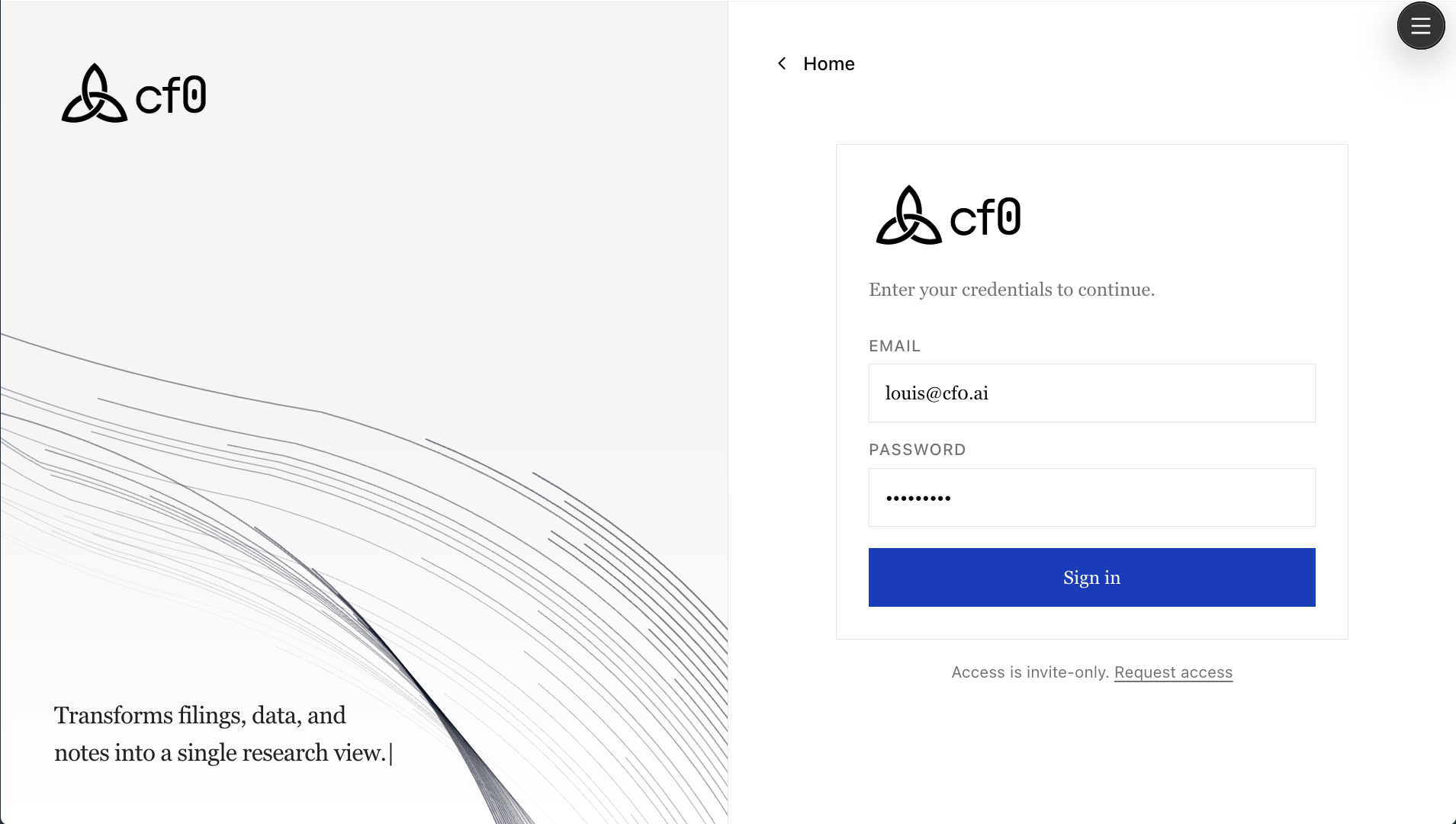
Signing in
Go to cf0.ai and click Log in. Enter your email address and password to access your workspace. If your account belongs to multiple organisations, you’ll be prompted to pick the one you want to work in.Access to cf0 requires an active organisation membership. If you don’t have an account yet, you need an invitation from your organisation’s admin — see Account setup.
Accepting an invitation
When an admin invites you to an organisation, you receive an email with a secure invitation link.Open the invitation email
Find the invitation from cf0 and click Accept invitation. Links expire after a set period — if yours has expired, ask your admin to resend it.
Create your account or sign in
If you don’t have a cf0 account, you’ll be prompted to set a password and complete your profile. If you already have an account with the same email, sign in with your existing credentials.
Two-factor authentication
Two-factor authentication can be enabled at the platform level by your organisation’s account team. If your firm requires 2FA, you’ll be prompted to enrol on first sign-in. The cf0 app itself doesn’t expose an in-app 2FA enrolment flow today — contact your cf0 account team if you need 2FA enforced for your org.If you’re locked out
- Forgotten password — click Forgot password on the sign-in page and follow the email reset flow.
- Lost access to 2FA — use a backup code if you saved one during enrolment. If not, contact your organisation’s admin or your cf0 account team to review access.
- Invitation link expired — ask your organisation’s admin to send a new invitation.
- Removed from an organisation — contact your admin. To join a different organisation, you need a new invitation from that org’s admin.