

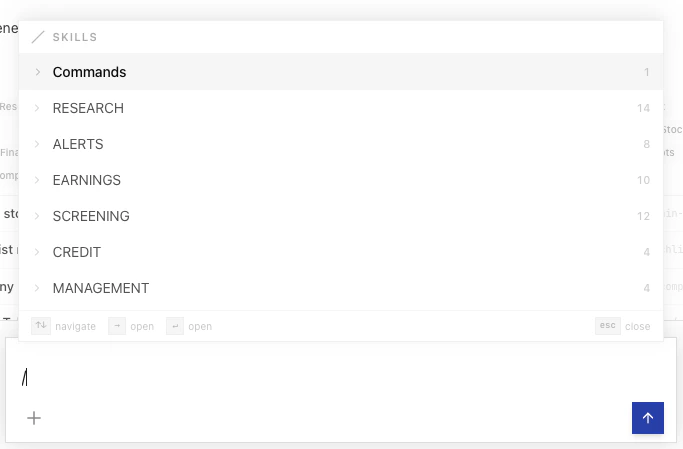
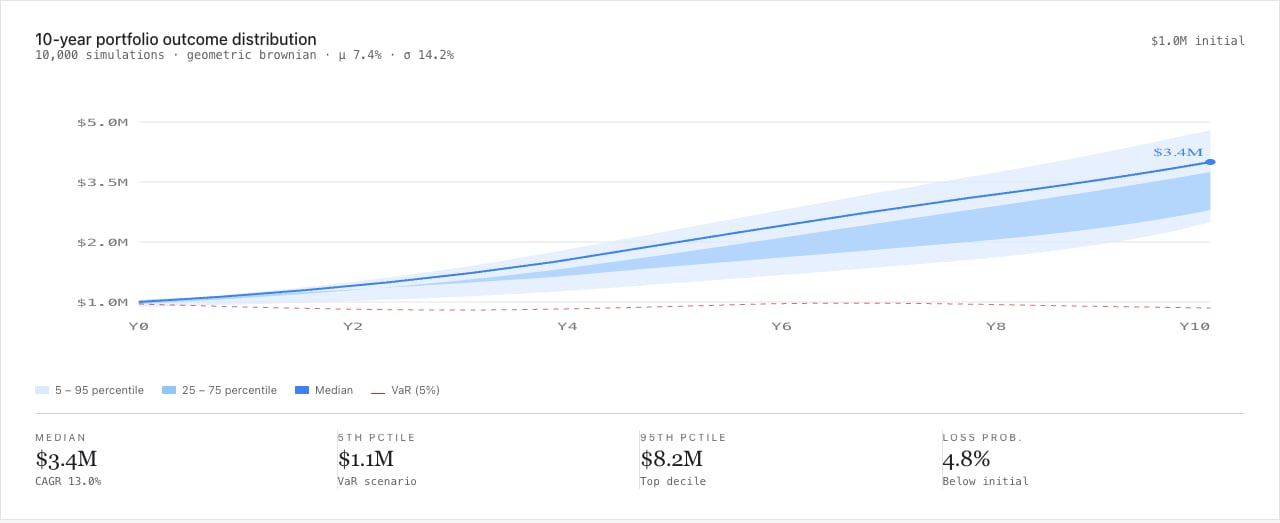
/skill-name whenever you need it. cf0 ships with a catalogue of named system workflows covering the institutional research stack — DCF, LBO, comps, IC memos, earnings recaps, debt covenant reviews, monte carlo, sector scans — and you can encode any process your firm runs as a personal or org-wide Skill.
System Skills vs custom Skills
System Skills
A growing library of pre-built workflows covering the standard institutional research stack — DCF, LBO, comps tables, earnings recaps, debt covenant review, IC memos, sector scans, monte carlo. Available to every user immediately, no setup required.
Custom Skills
Skills you create yourself, tailored to your firm’s exact processes. Personal Skills are private to you; org-wide Skills (created by org admins) are shared with every team member.
Invoke a Skill in Lab
Type/ followed by the Skill name in the Lab chat input and press Enter.
/earnings-summary AAPL Q3 2024.
Create a custom Skill
Open Skills, click + New skill
The slug used for
/skill-name invocation is generated from the display name.Write the prompt template
Plain instructions, structured-output requests, and
{{variable}} placeholders all work. Or describe the workflow in English and click Generate with AI — cf0 drafts the prompt for you to edit.Edit or delete a Skill
Select any custom Skill from the Skills list to open it in the detail panel. Click Edit to modify the name, description, or prompt content. Click Delete to remove it permanently.You can only edit or delete Skills you own. System Skills and org Skills (if you are not an org admin) are read-only.
Org-wide Skills (org admins)
Org admins can create Skills that are shared automatically with every member of the organisation.Create the Skill
Follow the same steps as creating a personal Skill, but toggle Share with org before saving.
/skill-name in Lab but cannot edit or delete them.
Find Skills
Use the search bar and filter tabs at the top of the Skills library to find what you need:| Filter | Shows |
|---|---|
| All | Every Skill available to you |
| System | cf0’s pre-built workflow catalogue |
| Org | Skills created by your org admin |
| Mine | Skills you have created |