> ## Documentation Index
> Fetch the complete documentation index at: https://docs.cf0.ai/llms.txt
> Use this file to discover all available pages before exploring further.
# Settings
> Configure your cf0 workspace across seven settings tabs — Account, Companies, Profile, Memory, Skills, Brand, and Integrations — for you and your team.
The Settings page covers every personalisation and admin lever in cf0. Open it from your avatar in the top-right corner, or navigate directly to `/settings`.
Settings is organised into seven tabs:
| Tab | Scope | What it controls |
| ---------------- | --------- | -------------------------------------------------------------------------------- |
| **Account** | You | Name, email, avatar, password |
| **Companies** | Org | Team members, invitations, roles (admin only for changes) |
| **Profile** | You | Role, sectors covered, response language |
| **Memory** | You | What cf0 remembers about your preferences and prior threads |
| **Skills** | You + Org | Your personal Skills (and org Skills if you're admin) |
| **Brand** | Org | Logo, colours, font for branded PDF reports (admin only) |
| **Integrations** | Org | Third-party connectors — Microsoft 365, Google Workspace, Slack, Notion, Granola |
## Account
Personal details on your own user record:
* **Name** — display name visible to teammates
* **Email** — login address (changes require email verification)
* **Profile picture** — your avatar across the app
* **Password** — change your password
## Companies (team management)
The Companies tab manages your **organisation's team** — members, roles, and invitations. It is **not** a stock watchlist or filing search — to find a company's filings, use [Filings](/features/filings).
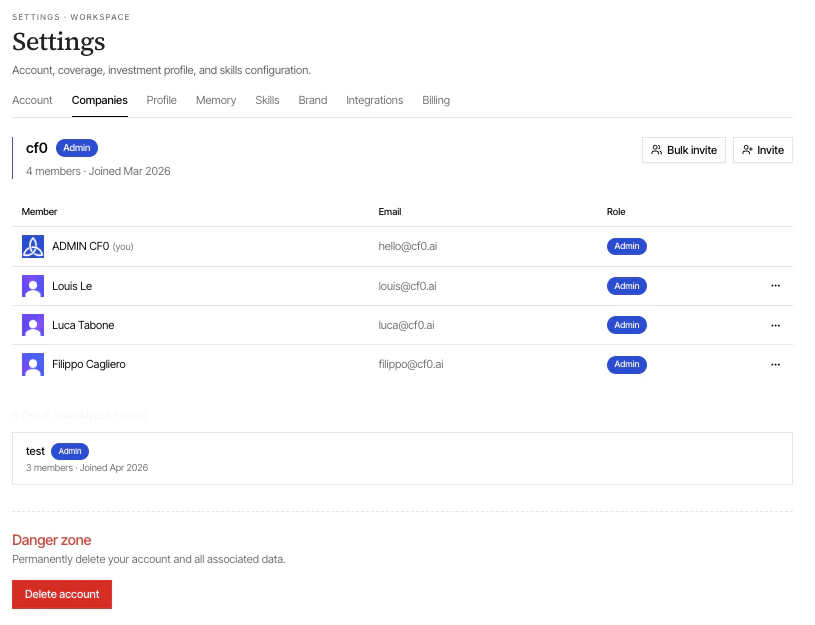 If you are an org admin:
Click **Invite**, enter their email, and choose a role:
* **Member** — full feature access within the org
* **Admin** — can also manage members, brand, and integrations
Click **Bulk invite** and paste a list of email addresses. Everyone gets the same role.
Use the role selector or the remove icon next to any member row.
Non-admin members see the team roster but cannot invite, remove, or change roles.
## Profile
Tells cf0 what you cover and how you want answers framed.
* **Role** — Analyst, Portfolio manager, Research operations, Other
* **Sectors** — Technology, Healthcare, Financials, Energy, Consumer Discretionary, Consumer Staples, Industrials, Real Estate, Materials
* **Language** — English, Portuguese, Spanish, French, German, Chinese. Every Lab response and report is written in this language
Your profile is private to you. It's not shared with other org members.
## Memory
What cf0 remembers about you across sessions — your stated preferences, recurring queries, prior thread context. Review and clear individual entries when needed.
## Skills
Personal Skills you've created (private to you). Enable, disable, edit, or delete from here. Org Skills (shared by an admin) are visible but read-only unless you're an admin yourself.
To create new Skills, use the dedicated [Skills](/features/skills) page, not this tab.
## Brand (org admin only)
Controls the look of branded PDF reports — logo, colour scheme, font choices. Every Report your team exports inherits these settings without manual formatting.
Recommended uploads:
* **Logo** — SVG preferred, PNG acceptable; light + dark variants for theme adaptation
* **Primary colour** — your firm's accent (used scarcely on covers and section heads)
* **Typeface** — defaults to the cf0 editorial stack; override if your firm has a brand font
## Integrations (org admin only)
Connect cf0 to third-party tools your firm already uses. See the [Integrations](/data/integrations) page for the full catalogue and connection flow.
## Danger zone
At the bottom of the Settings page, **Delete account** permanently removes your user profile, query history, and personal data. Organisation data and shared documents are not affected.
Account deletion cannot be undone. To leave an organisation without deleting your account, ask your org admin to remove your membership instead.
If you are an org admin:
Click **Invite**, enter their email, and choose a role:
* **Member** — full feature access within the org
* **Admin** — can also manage members, brand, and integrations
Click **Bulk invite** and paste a list of email addresses. Everyone gets the same role.
Use the role selector or the remove icon next to any member row.
Non-admin members see the team roster but cannot invite, remove, or change roles.
## Profile
Tells cf0 what you cover and how you want answers framed.
* **Role** — Analyst, Portfolio manager, Research operations, Other
* **Sectors** — Technology, Healthcare, Financials, Energy, Consumer Discretionary, Consumer Staples, Industrials, Real Estate, Materials
* **Language** — English, Portuguese, Spanish, French, German, Chinese. Every Lab response and report is written in this language
Your profile is private to you. It's not shared with other org members.
## Memory
What cf0 remembers about you across sessions — your stated preferences, recurring queries, prior thread context. Review and clear individual entries when needed.
## Skills
Personal Skills you've created (private to you). Enable, disable, edit, or delete from here. Org Skills (shared by an admin) are visible but read-only unless you're an admin yourself.
To create new Skills, use the dedicated [Skills](/features/skills) page, not this tab.
## Brand (org admin only)
Controls the look of branded PDF reports — logo, colour scheme, font choices. Every Report your team exports inherits these settings without manual formatting.
Recommended uploads:
* **Logo** — SVG preferred, PNG acceptable; light + dark variants for theme adaptation
* **Primary colour** — your firm's accent (used scarcely on covers and section heads)
* **Typeface** — defaults to the cf0 editorial stack; override if your firm has a brand font
## Integrations (org admin only)
Connect cf0 to third-party tools your firm already uses. See the [Integrations](/data/integrations) page for the full catalogue and connection flow.
## Danger zone
At the bottom of the Settings page, **Delete account** permanently removes your user profile, query history, and personal data. Organisation data and shared documents are not affected.
Account deletion cannot be undone. To leave an organisation without deleting your account, ask your org admin to remove your membership instead.