> ## Documentation Index
> Fetch the complete documentation index at: https://docs.cf0.ai/llms.txt
> Use this file to discover all available pages before exploring further.
# Authentication
> How to sign in to cf0, accept an organisation invitation, and recover access when you're locked out. Sessions are scoped to your active organisation.
cf0 uses enterprise-grade authentication. You sign in at [cf0.ai](https://cf0.ai), and every session is scoped to your active organisation — you only ever see your firm's data.
 ## Signing in
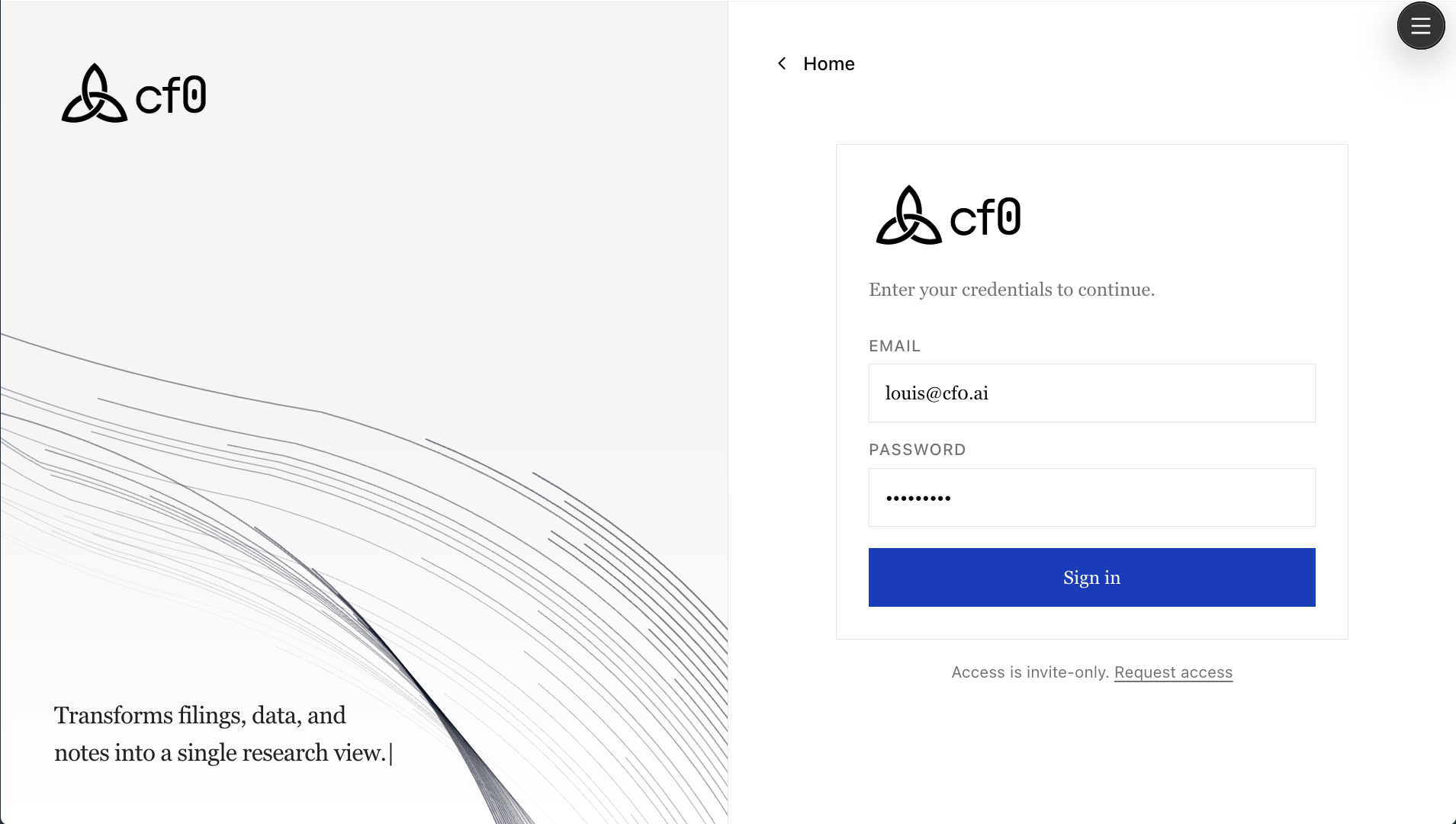
Go to [cf0.ai](https://cf0.ai) and click **Log in**. Enter your email address and password to access your workspace. If your account belongs to multiple organisations, you'll be prompted to pick the one you want to work in.
Access to cf0 requires an active organisation membership. If you don't have an account yet, you need an invitation from your organisation's admin — see [Account setup](/account-setup#activate-your-invitation).
## Accepting an invitation
When an admin invites you to an organisation, you receive an email with a secure invitation link.
Find the invitation from cf0 and click **Accept invitation**. Links expire after a set period — if yours has expired, ask your admin to resend it.
If you don't have a cf0 account, you'll be prompted to set a password and complete your profile. If you already have an account with the same email, sign in with your existing credentials.
Once you've signed in, you join the organisation's workspace automatically and can start using cf0 immediately.
## Two-factor authentication
Two-factor authentication can be enabled at the platform level by your organisation's account team. If your firm requires 2FA, you'll be prompted to enrol on first sign-in. The cf0 app itself doesn't expose an in-app 2FA enrolment flow today — contact your cf0 account team if you need 2FA enforced for your org.
## If you're locked out
* **Forgotten password** — click **Forgot password** on the sign-in page and follow the email reset flow.
* **Lost access to 2FA** — use a backup code if you saved one during enrolment. If not, contact your organisation's admin or your cf0 account team to review access.
* **Invitation link expired** — ask your organisation's admin to send a new invitation.
* **Removed from an organisation** — contact your admin. To join a different organisation, you need a new invitation from that org's admin.
cf0 support cannot bypass organisation access controls on your behalf. All membership decisions are managed by your organisation's admins.
## Signing in
Go to [cf0.ai](https://cf0.ai) and click **Log in**. Enter your email address and password to access your workspace. If your account belongs to multiple organisations, you'll be prompted to pick the one you want to work in.
Access to cf0 requires an active organisation membership. If you don't have an account yet, you need an invitation from your organisation's admin — see [Account setup](/account-setup#activate-your-invitation).
## Accepting an invitation
When an admin invites you to an organisation, you receive an email with a secure invitation link.
Find the invitation from cf0 and click **Accept invitation**. Links expire after a set period — if yours has expired, ask your admin to resend it.
If you don't have a cf0 account, you'll be prompted to set a password and complete your profile. If you already have an account with the same email, sign in with your existing credentials.
Once you've signed in, you join the organisation's workspace automatically and can start using cf0 immediately.
## Two-factor authentication
Two-factor authentication can be enabled at the platform level by your organisation's account team. If your firm requires 2FA, you'll be prompted to enrol on first sign-in. The cf0 app itself doesn't expose an in-app 2FA enrolment flow today — contact your cf0 account team if you need 2FA enforced for your org.
## If you're locked out
* **Forgotten password** — click **Forgot password** on the sign-in page and follow the email reset flow.
* **Lost access to 2FA** — use a backup code if you saved one during enrolment. If not, contact your organisation's admin or your cf0 account team to review access.
* **Invitation link expired** — ask your organisation's admin to send a new invitation.
* **Removed from an organisation** — contact your admin. To join a different organisation, you need a new invitation from that org's admin.
cf0 support cannot bypass organisation access controls on your behalf. All membership decisions are managed by your organisation's admins.