> ## Documentation Index
> Fetch the complete documentation index at: https://docs.cf0.ai/llms.txt
> Use this file to discover all available pages before exploring further.
# Documents
> Upload PDFs, spreadsheets, and images to your cf0 workspace and make them available for AI analysis in Lab — with team sharing controls for org admins.
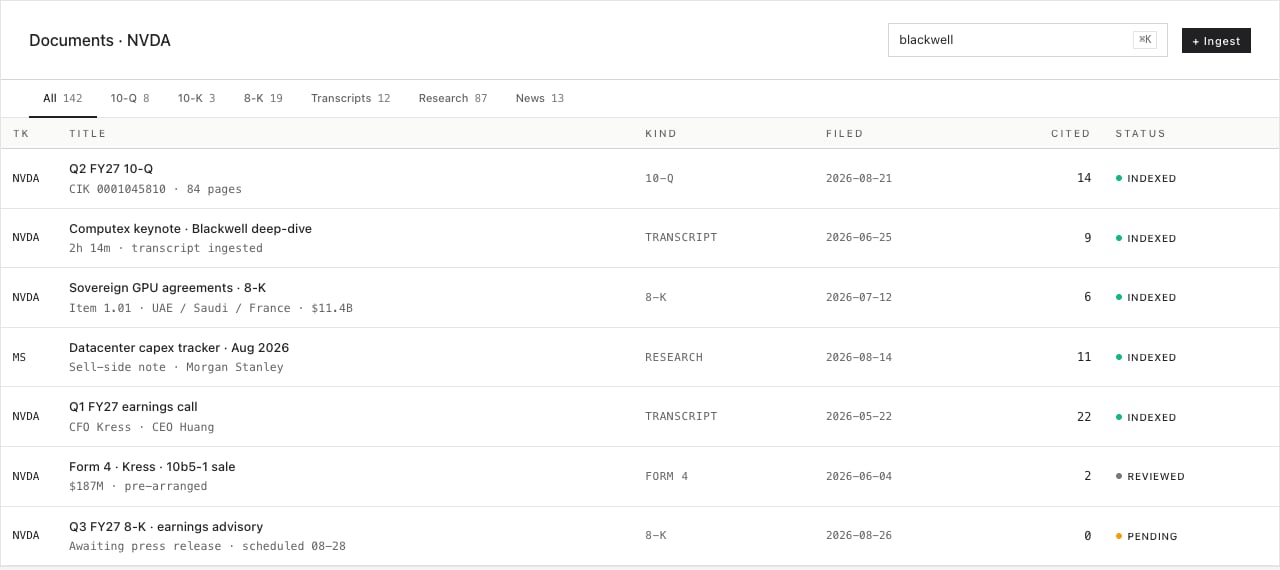
Documents lets you bring your own files into cf0 so the AI in Lab can read and analyse them alongside live financial data. You can upload PDFs, spreadsheets, and images, browse your workspace filesystem, and — if you are an org admin — approve documents for sharing across your team.
 ## Supported file types
| Type | Formats |
| ------------- | -------------- |
| Documents | PDF, DOCX |
| Spreadsheets | CSV, XLSX |
| Presentations | PPTX |
| Images | PNG, JPG, JPEG |
| Text | TXT, MD, HTML |
Maximum file size: **50 MB**. Files larger than that are rejected at upload.
Scanned PDFs and image-heavy documents go through an OCR step after upload. Processing typically takes a few seconds to a minute depending on file size.
## Upload a document
Open the **Documents** page and drag one or more files from your desktop directly onto the browser window. A drop zone appears as you drag over the page. Release the files to start the upload.
Open the **Documents** page, go to the **My documents** tab, and click **Upload**. Select one or more files using your system file picker.
cf0 queues each file for ingestion immediately after upload. A confirmation message appears for each file that is successfully queued.
## Document tabs
The Documents page has three tabs:
Documents shared with your entire organisation by an org admin. All team members can see and use these files in Lab.
Your personal uploads. Only you can see these unless you request to share them with the org.
A filesystem browser showing all files available in your cf0 sandbox — including documents, outputs, and working files from Lab sessions.
## Workspace browser
The **Workspace** tab shows a full filesystem view of your cf0 environment. You can see every file that is available to the AI in your Lab sessions, including uploaded documents and files generated during previous conversations.
A typical workspace tree:
## Analyse documents in Lab
Once a document is uploaded and ingested, it is available to [Lab](/features/lab) automatically. Reference it in a Lab prompt to include it in the analysis:
> "Summarise the key risks in the uploaded investor presentation."
> "Extract the revenue and EBITDA figures from the uploaded Q3 spreadsheet."
Lab reads from your personal documents and any org documents shared with your team.
## Team document sharing (org admins)
If you are an org admin, you can approve or reject document sharing requests from team members.
When team members request to share a document with the org, the request appears in the **Approval queue** section at the top of the Documents page — visible only to admins.
Click **Approve** to make the document available under **Org documents** for all team members. Click **Reject** to decline the request.
Org admins can also upload documents directly to the org library from the **Org documents** tab, bypassing the approval queue.
Use org documents to share reference materials — term sheets, policy documents, internal models — that your whole team needs access to in Lab.
## Supported file types
| Type | Formats |
| ------------- | -------------- |
| Documents | PDF, DOCX |
| Spreadsheets | CSV, XLSX |
| Presentations | PPTX |
| Images | PNG, JPG, JPEG |
| Text | TXT, MD, HTML |
Maximum file size: **50 MB**. Files larger than that are rejected at upload.
Scanned PDFs and image-heavy documents go through an OCR step after upload. Processing typically takes a few seconds to a minute depending on file size.
## Upload a document
Open the **Documents** page and drag one or more files from your desktop directly onto the browser window. A drop zone appears as you drag over the page. Release the files to start the upload.
Open the **Documents** page, go to the **My documents** tab, and click **Upload**. Select one or more files using your system file picker.
cf0 queues each file for ingestion immediately after upload. A confirmation message appears for each file that is successfully queued.
## Document tabs
The Documents page has three tabs:
Documents shared with your entire organisation by an org admin. All team members can see and use these files in Lab.
Your personal uploads. Only you can see these unless you request to share them with the org.
A filesystem browser showing all files available in your cf0 sandbox — including documents, outputs, and working files from Lab sessions.
## Workspace browser
The **Workspace** tab shows a full filesystem view of your cf0 environment. You can see every file that is available to the AI in your Lab sessions, including uploaded documents and files generated during previous conversations.
A typical workspace tree:
## Analyse documents in Lab
Once a document is uploaded and ingested, it is available to [Lab](/features/lab) automatically. Reference it in a Lab prompt to include it in the analysis:
> "Summarise the key risks in the uploaded investor presentation."
> "Extract the revenue and EBITDA figures from the uploaded Q3 spreadsheet."
Lab reads from your personal documents and any org documents shared with your team.
## Team document sharing (org admins)
If you are an org admin, you can approve or reject document sharing requests from team members.
When team members request to share a document with the org, the request appears in the **Approval queue** section at the top of the Documents page — visible only to admins.
Click **Approve** to make the document available under **Org documents** for all team members. Click **Reject** to decline the request.
Org admins can also upload documents directly to the org library from the **Org documents** tab, bypassing the approval queue.
Use org documents to share reference materials — term sheets, policy documents, internal models — that your whole team needs access to in Lab.